A mouse wheel zooms, the CAD convention. A two-finger drag on a trackpad pans the drawing with your fingers, and Shift + wheel pans sideways. A pinch, and ⌘/ctrl + scroll, always zoom. Lost the drawing? Press F to frame all of it.
If scrolling does the opposite of what you want, you can change it in two clicks.
The same rules apply in the plan and in the elevation panes.
Changing what scrolling does
Scrolling has three settings. The quickest way to them is the zoom percentage at the bottom right of the plan, the number between − and +.
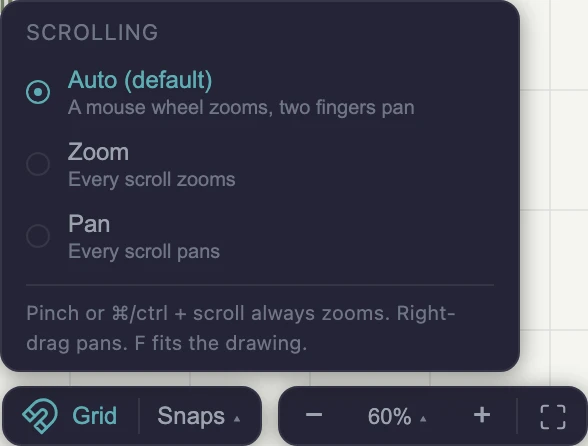
- Click the percentage (it reads something like 60% ▴).
- Choose Auto, Zoom or Pan. It applies at once, and there is nothing to save.
- Click the percentage again, or click anywhere else, to close it.
| Option | What plain scrolling does |
|---|---|
| Auto (default) | A mouse wheel zooms, a two-finger trackpad drag pans. |
| Zoom | Every scroll zooms. |
| Pan | Every scroll pans. |
Pinch and ⌘/ctrl + scroll zoom in all three, and dragging with the right mouse button always pans.
The same setting in Drawing settings
If the plan is not showing, or you are already in the settings, the same choice is there too:
- Click ⚙ Settings in the top bar. On a narrow window it moves to More, and Project, then Drawing settings… always works.
- Choose Navigation in the list on the left.
- Change Scrolling in the dropdown, then click Done.
Most of Drawing settings belongs to the project, but this does not. It belongs to the browser you are sitting at, which is why the heading says this device. Which pointing device is on the desk is not a property of the drawing, so the setting never travels with the file and never follows you to another machine.
Panning and zooming with the mouse and keys
Drag with the right or middle button, or hold Space and drag, to move the drawing. The tool you are using keeps its work in progress, so you can pan halfway through drawing a wall.
Zooming without a wheel
The bottom right of the plan has four controls: −, the percentage, + and Zoom to fit. Each click of − or + is a quarter step about the middle of the drawing area, so three of them roughly double or halve the scale. They are the answer when there is no wheel to spin (a trackpad set to pan, a touchscreen, a mouse with a dead scroll), and every click is the same step, which a gesture is not. Each one greys out at its end of the range, the same limits the wheel stops at.
These controls drive the plan, so they are only there in the plan view. 3D has its own Fit button in the same corner.
What this doesn’t do
- Auto can still guess wrong in a browser that reports scrolling differently. Gridsnap tells a mouse wheel from a trackpad by the browser’s own report of each event. If your scrolling does the wrong thing, pick Zoom or Pan in the setting above.
- The browser will not page-zoom under a pinch. That is deliberate: a pinch over the drawing zooms the drawing, not the window.
Next
Keyboard shortcuts for the rest of the navigation keys, and snapping, whose tolerances are in screen pixels, which is why they feel the same however far you have zoomed.